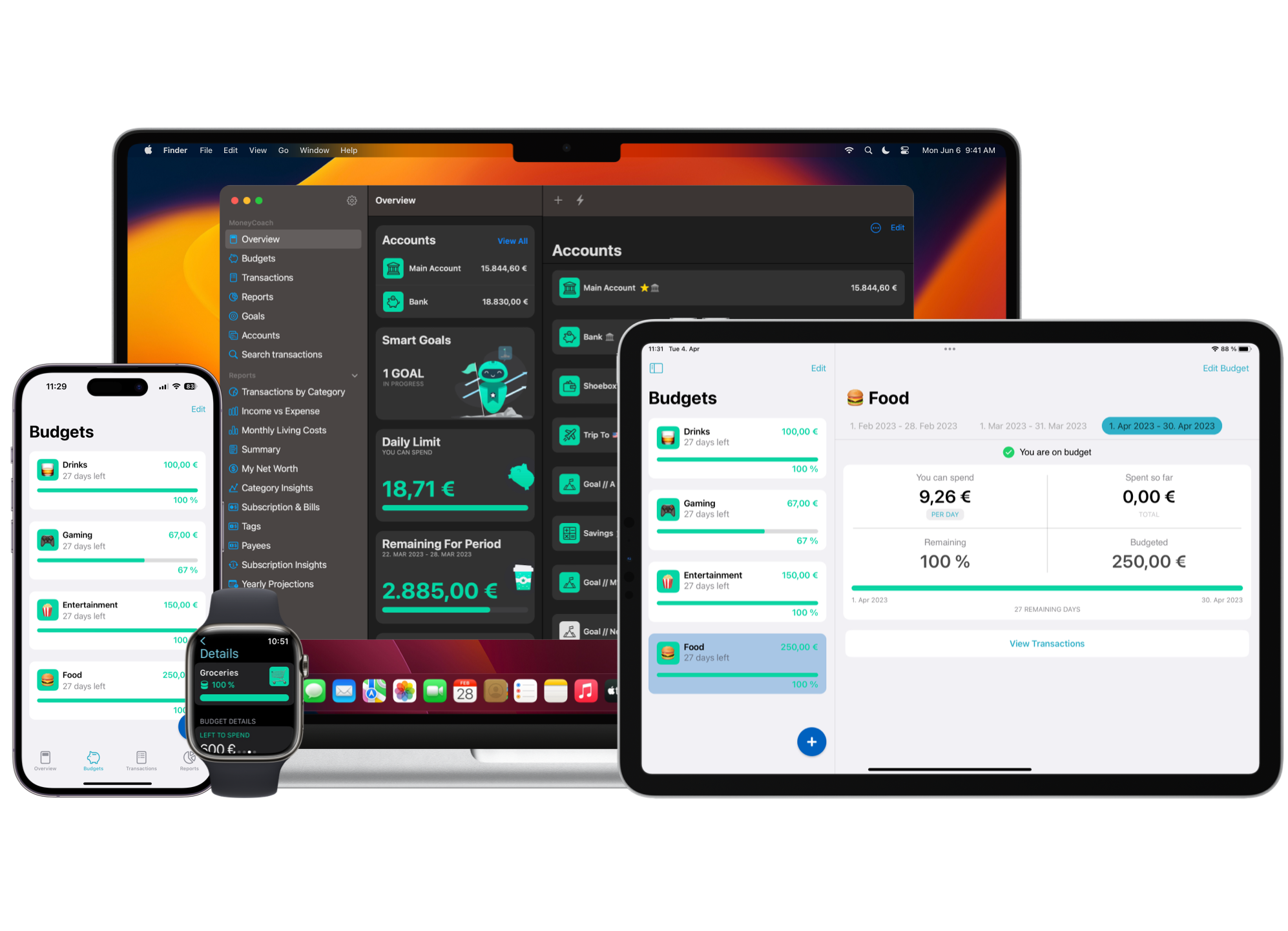
To connect MoneyCoach to Claude, add MoneyCoach as a custom connector in Claude with the address https://mcp.moneycoach.ai/mcp. Then sign in with your MoneyCoach account and tap Allow. Claude can then read your MoneyCoach data and answer questions about your money. Claude cannot change your data.
Before you start
Make sure that you have these items:
- A MoneyCoach account with Premium Max. The server checks Premium Max at every request.
- MCP & AI turned on in the MoneyCoach app, with the first upload done.
- Claude on the web or Claude Desktop.
Your iPhone, iPad or Mac does not need to be on when you use Claude. Claude reads the copy of your data on the MoneyCoach server.
Step-by-step guide
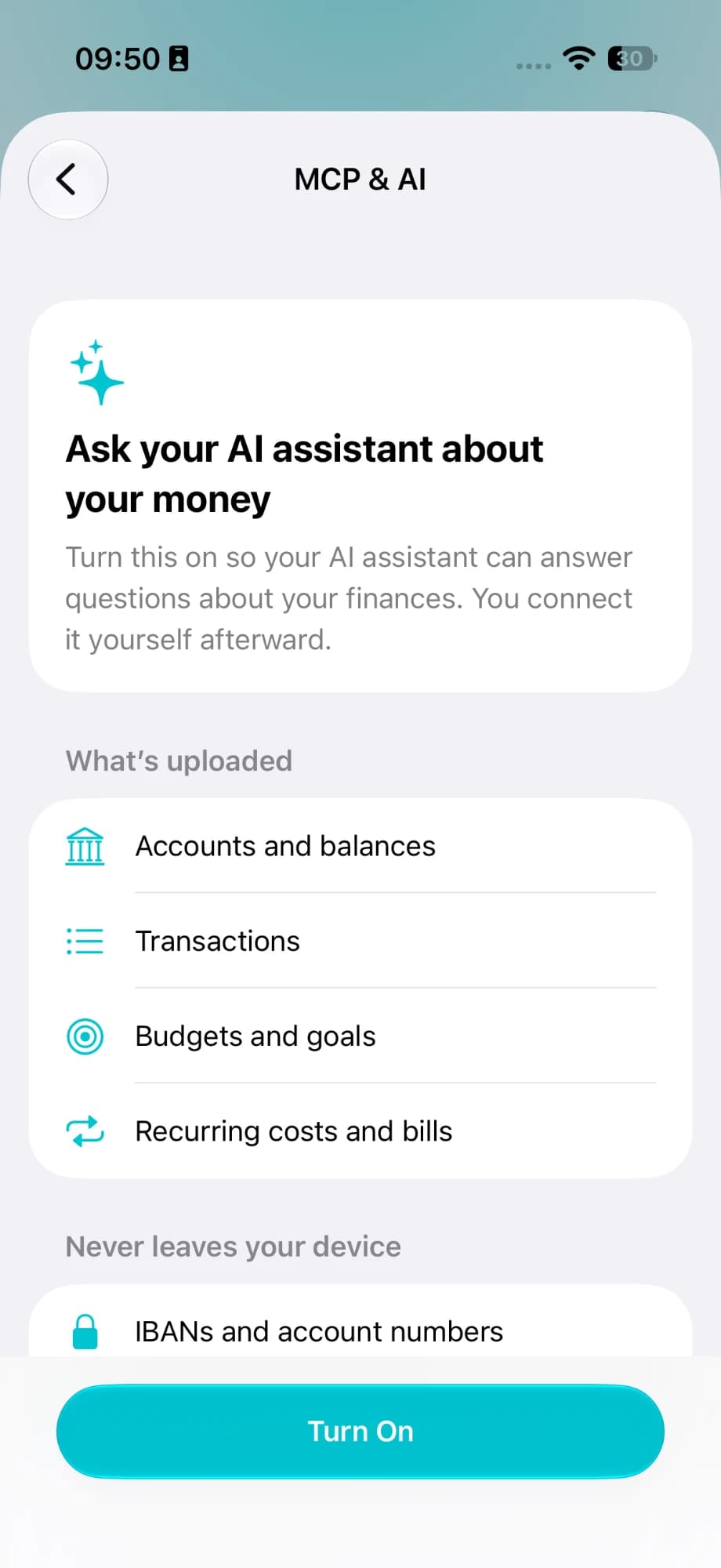
1. Turn on MCP & AI in MoneyCoach
- Open Settings > MCP & AI.
- Tap Turn On. If your account does not have Premium Max, the screen shows Unlock Premium Max instead.
- Wait until Status shows Up to date. Until then, it shows First upload pending.
2. Copy the server address
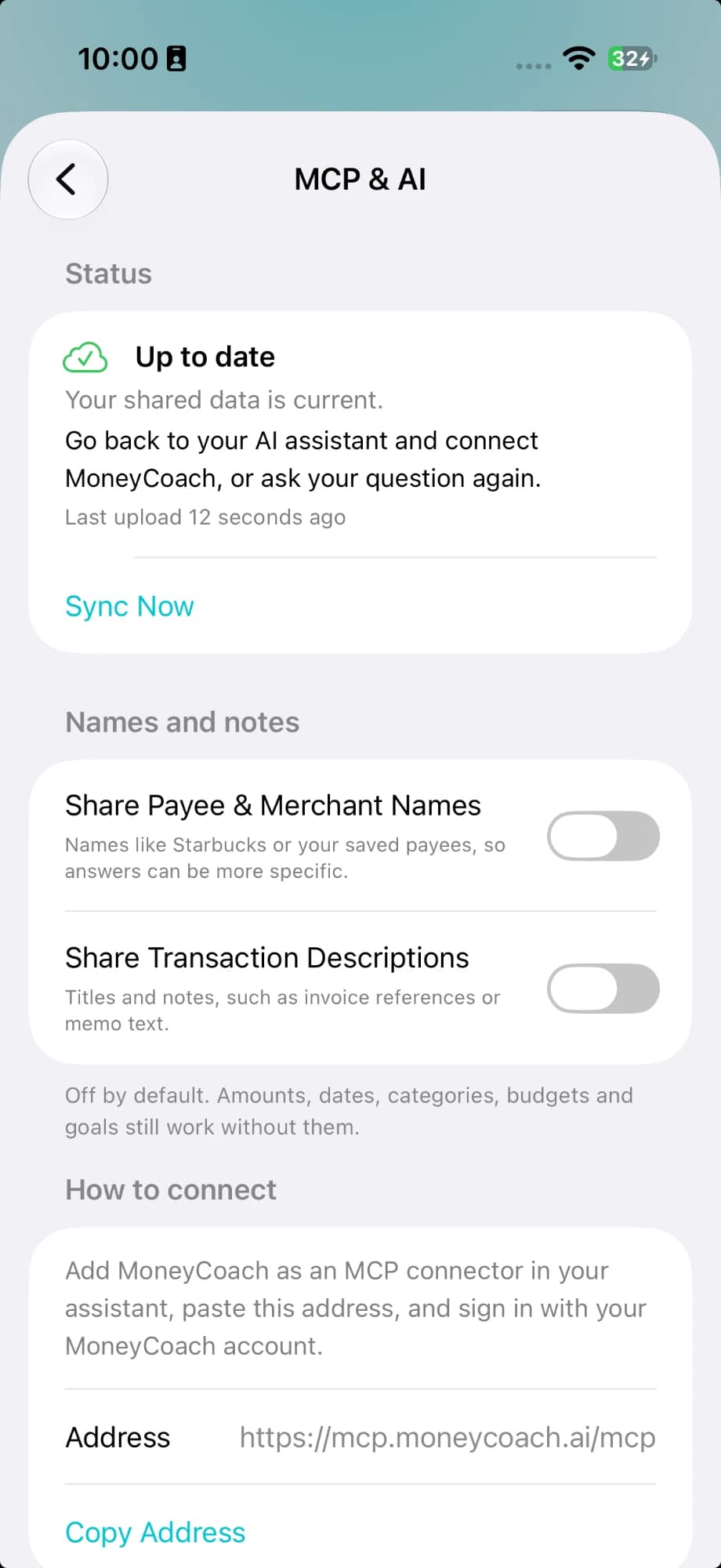
- On the Settings > MCP & AI screen, find the section How to connect. The section shows only when MCP & AI is on.
- The row Address shows
https://mcp.moneycoach.ai/mcp. - Tap Copy Address.
Use the full address, including /mcp. The server accepts only this exact address.
3. Add MoneyCoach in Claude
- In Claude on the web or on Desktop, open Settings.
- Open Connectors.
- Select Add custom connector.
- Enter the name
MoneyCoachand paste the address. - Leave the client ID and the secret empty.
- Select Connect. The MoneyCoach sign-in page opens.
4. Sign in and allow access
- Tap Continue with Apple, or enter your email and password and tap Sign in with email. Use the account that has Premium Max and MCP & AI turned on.
- Read the list of data that Claude can read.
- Tap Allow.
5. Ask Claude a question
- In a chat, turn the MoneyCoach connector on.
- Ask a question, for example:
- "What bills are due in the next two weeks?"
- "How much did I spend on groceries last month?"
- "What is my net worth?"
For more prompts, see MoneyCoach MCP examples.
What Claude can read
- The sign-in page lists the data: accounts and balances, transactions, budgets and goals, and subscriptions.
- MoneyCoach gives Claude twelve tools. They list accounts, budgets, goals and subscriptions, and search transactions.
- Four tools give net worth, a spending summary, cash flow and upcoming bills.
- Every tool only reads. No tool adds, changes or deletes data.
- Claude cannot see your passwords or how you sign in.
- Payee and merchant names and transaction notes are included only if you share them in the app.
When you ask a question, Anthropic receives the data that Claude needs to answer. Anthropic handles that data under its own privacy policy. This can include processing outside the EU, for example in the USA. For details, see MoneyCoach MCP privacy.
Disconnect Claude
- To disconnect Claude only, remove the MoneyCoach connector in Claude.
- To disconnect all assistants at once, open Settings > MCP & AI in MoneyCoach and tap Delete Shared Data and Disconnect. Then tap Delete and Disconnect to confirm. This also deletes the cloud copy.
Troubleshooting
| What you see | Cause | What to do |
|---|---|---|
| Claude says there is no MoneyCoach data for the account. | MCP & AI is off, or the first upload is not done. | Open Settings > MCP & AI. Turn it on. Wait for the first upload. Then ask again. |
| Claude says the tools need an active Premium Max subscription. | Premium Max is not active. | Check the Premium Max subscription in the MoneyCoach app. |
| "Too many requests. Try again in a minute." | Claude went over the request limit. | Wait one minute. |
| "MoneyCoach is busy. Try again in a few seconds." | The server is busy. | Try again. |
| "MoneyCoach couldn't answer right now. Try again." | The server had a short error. | Try again. |
| Sign-in page: "This account has no MoneyCoach data in the cloud yet." | The account has no cloud copy. | Turn on MCP & AI in the app and wait for the first upload. Then connect again. |
| Sign-in page: "Connecting an AI assistant needs MoneyCoach Premium Max on this account." | The account has no active Premium Max. | Upgrade in the MoneyCoach app. Then connect again. |
| Sign-in page: "This request has expired. Go back to your AI assistant and connect again." | The sign-in request is older than 15 minutes. | Start the connection again in Claude. |
| Sign-in page: "Sign-in didn't work. Please try again." | The sign-in failed. | Try again. Use Use another account if the wrong account shows. |
If the problem continues, contact MoneyCoach support.
Additional information
- A connection stays valid for 90 days. Each renewal by Claude extends it by 90 days.
- Claude can make 60 requests a minute.
- The sign-in page speaks English, German, Italian, Spanish and French.
- To use MoneyCoach with local tools on a Mac instead, see How to set up local MoneyCoach MCP on Mac.