
Open Settings → General → Transaction Cells to change how transaction rows look in MoneyCoach. Under Style, choose Regular or Slim. Use Display plus/minus to show amount signs. Use Color amounts to change amount colors.
Step-by-step guide
- Open MoneyCoach on your iPhone or iPad.
- Open Settings.
- Select General.
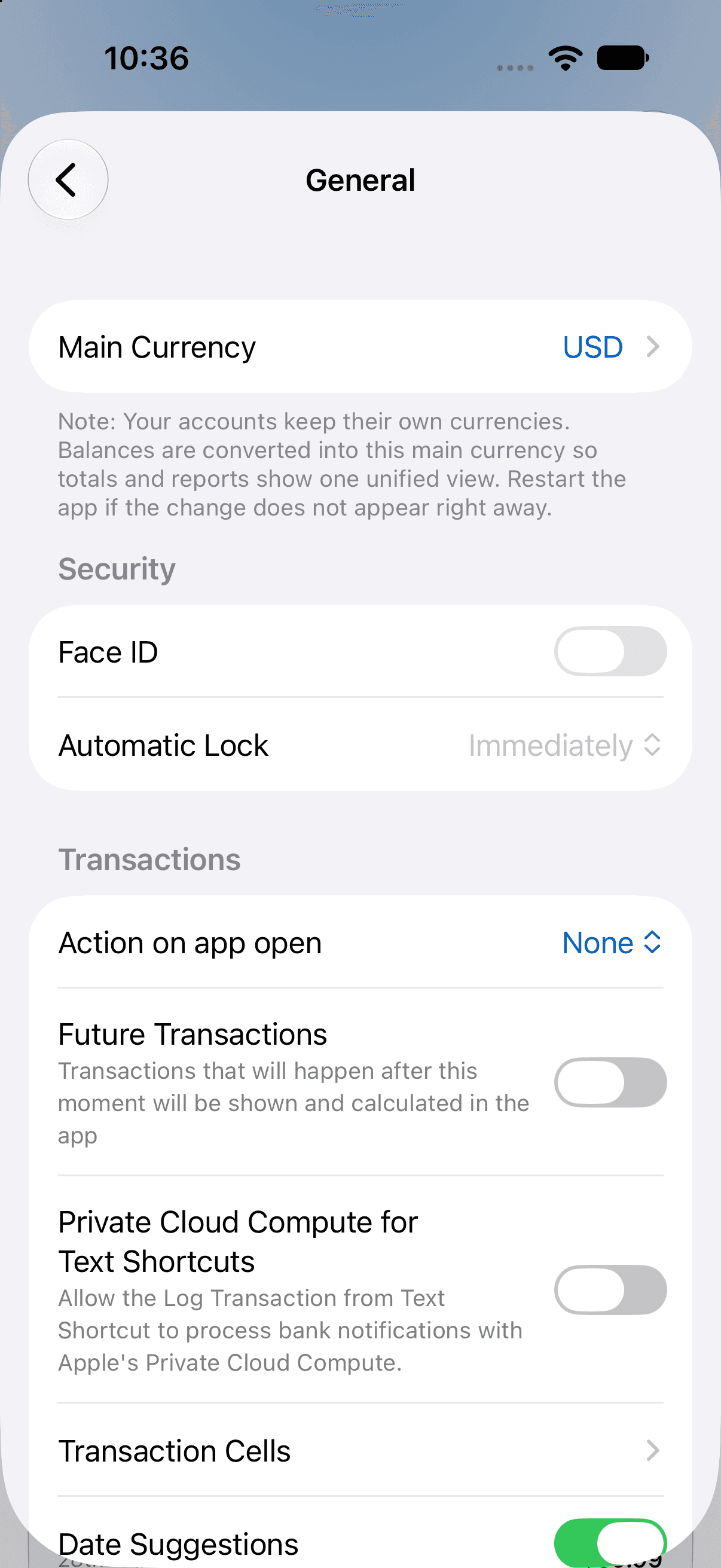
In General, open Transaction Cells under Transactions.
- Select Transaction Cells.
- Under Style, choose Regular for a fuller layout or Slim for a compact layout.
- Check the Preview at the top of the screen.
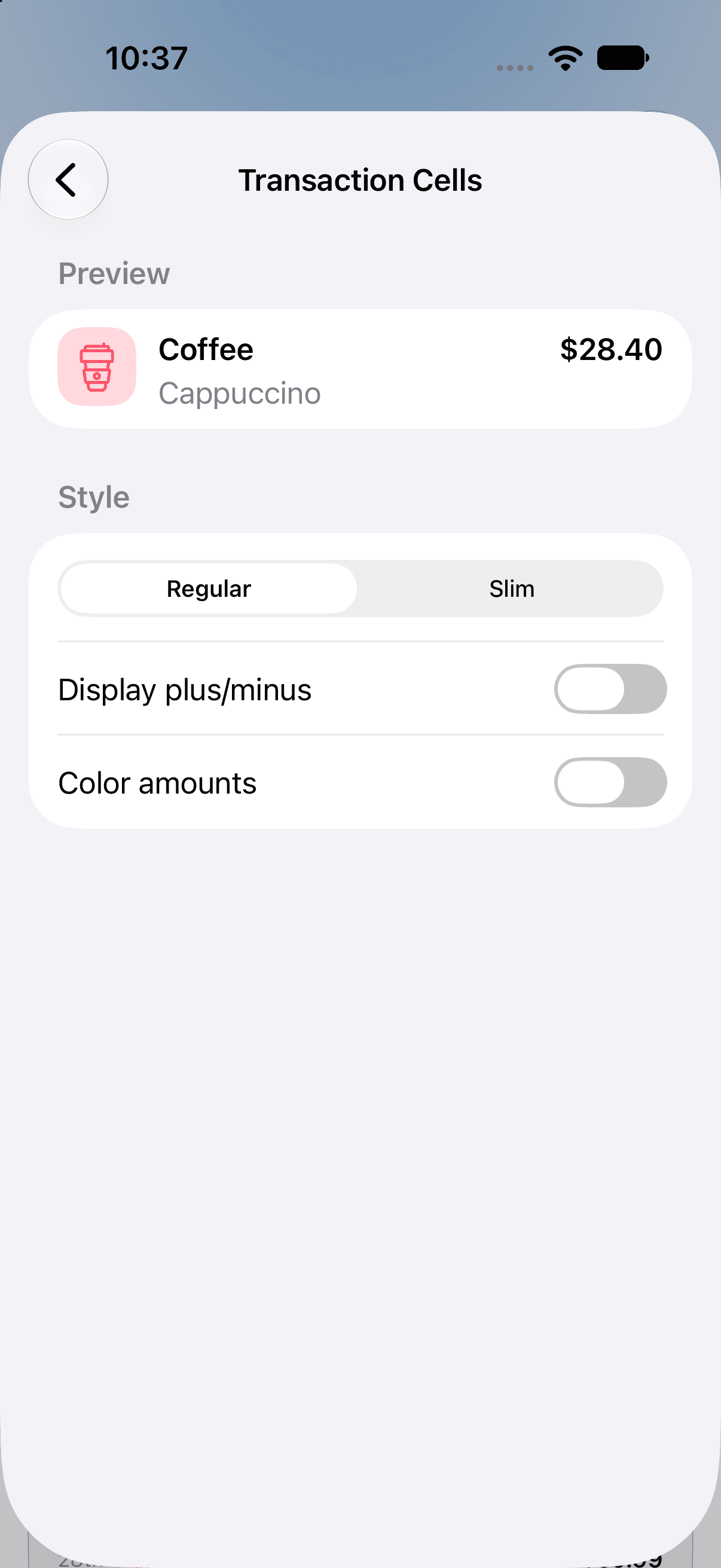
Regular shows a fuller row layout with a larger category icon.
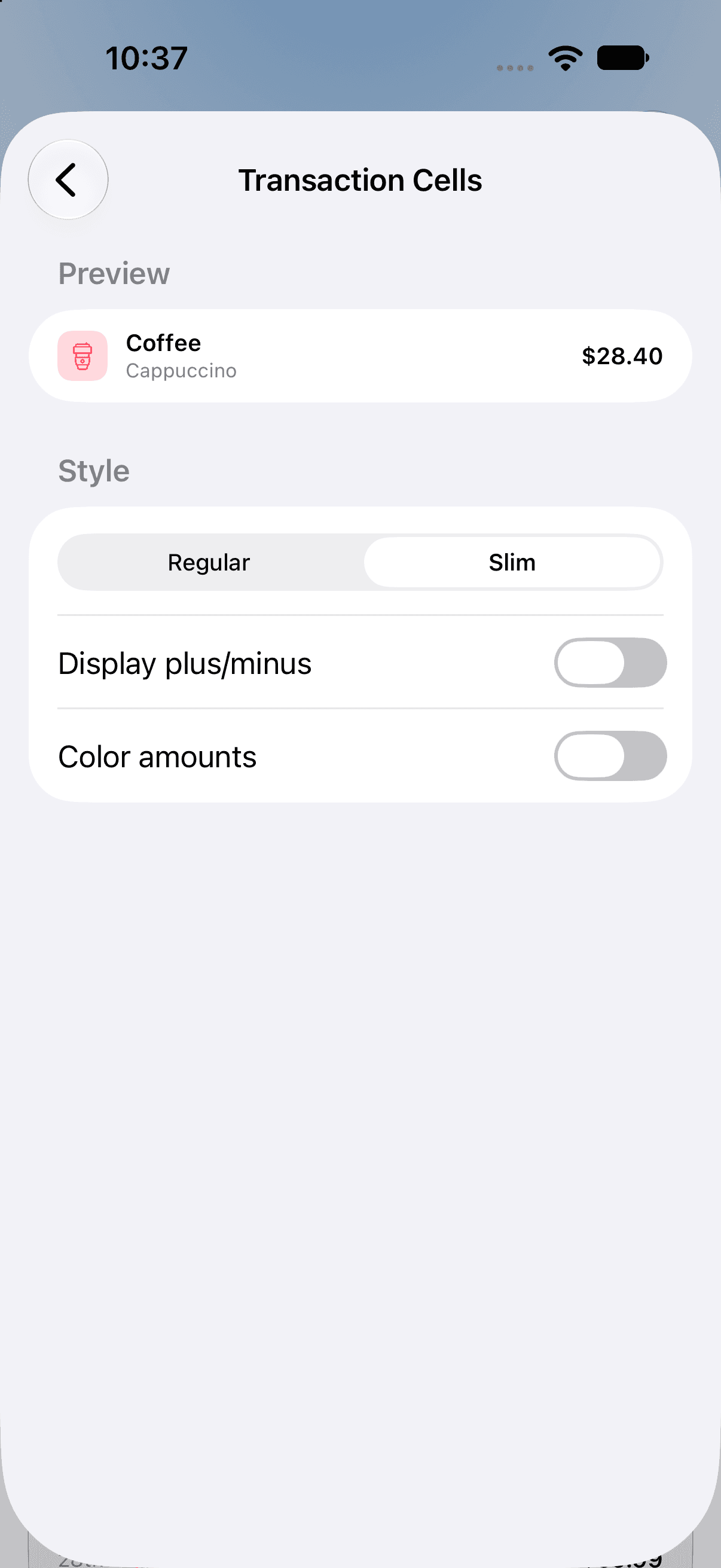
Slim uses a smaller icon and a more compact row for the same transaction.
- To show plus and minus signs, turn on Display plus/minus.
- To show amounts in colors for each transaction type, turn on Color amounts.
- Return to your transaction list.
- Check the row layout and amounts.
MoneyCoach saves your changes automatically. To change these options again, return to Transaction Cells.
When to use Regular or Slim
For compact rows with the category, subcategory, and amount, choose Slim. MoneyCoach uses Slim until you save a style preference.
For more room for details, such as a transaction description, choose Regular. A description can help you tell two purchases in the same category apart.
Additional information
If the rows look too compact, check Style first. Slim does not show payee or location details in its rows. Regular shows details based on the list and the information you saved with the transaction. Some fields can remain hidden. This setting does not make tags appear in every row.
These settings change how the rows look. They do not change the details you saved with each transaction. To add information to a transaction, see how to add a description, tags, and a payee.