
In MoneyCoach 12.5 on iPhone, open Overview to find Reports. Scroll past the other cards. Tap the Reports card to open the report list.
Find the Reports list
- Open Overview.
- Scroll down to the Reports card.
- Tap Reports.
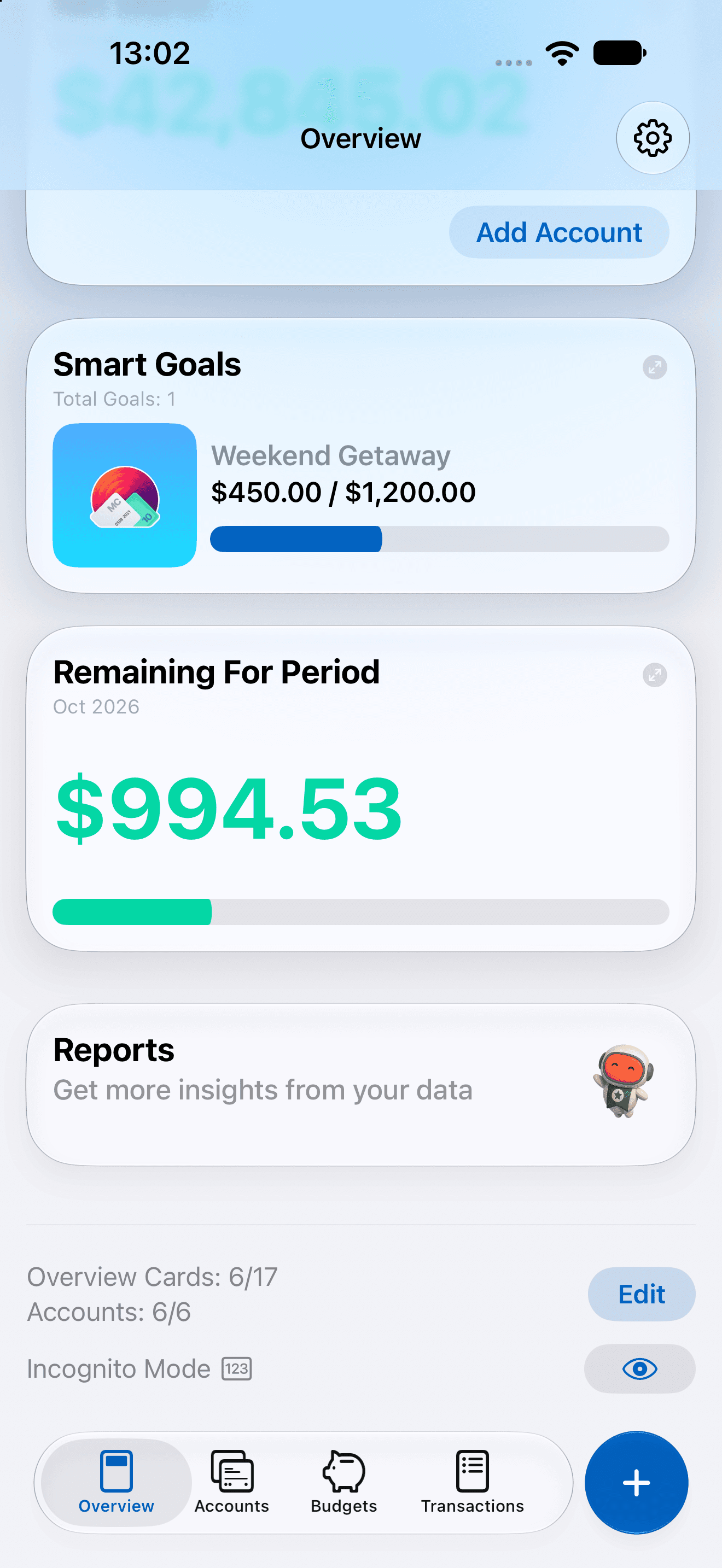
On iPhone, the Reports card opens the report list.
The Reports card stays below the customizable cards. You do not need to enable it in Customize Overview.
In wider layouts, use the Reports tab. If the tab is absent, use the Reports card on Overview.
Review expenses for a month
Choose the dates inside a report. The Reports list itself has no date filter.
You need at least one active transaction to generate a report. Transfers alone do not meet this requirement.
- From the Reports list, open Top Categories.
- To view expenses, select the minus (−) button.
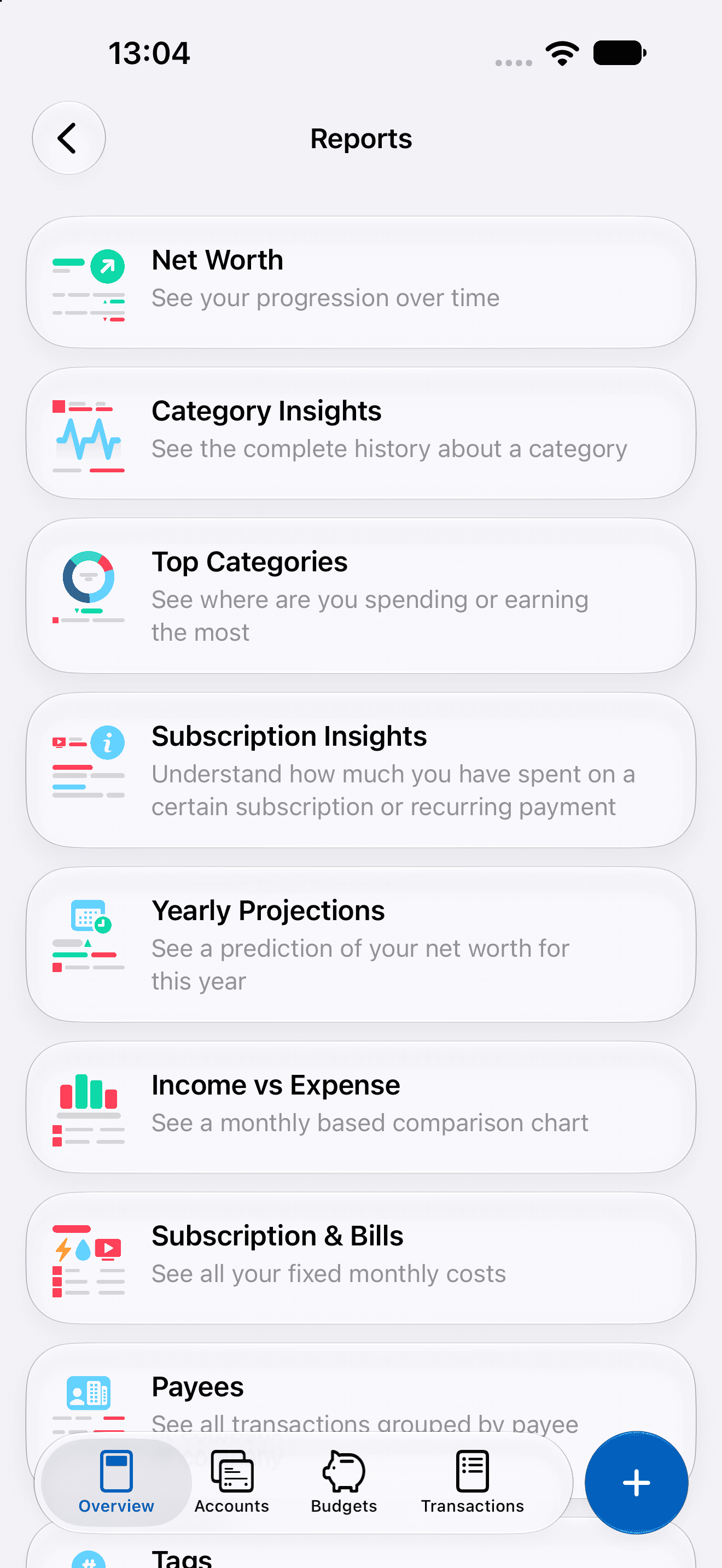
Open Top Categories to review expenses by category.
The period buttons follow your payday settings. A displayed period might not match a full calendar month.
If you already selected a custom range, its button shows that period.
To select an exact calendar month:
- Tap Custom… or the period shown in its place.
- Set Start Date to the first day of the month.
- Set End Date to the last day of the month.
- Tap the checkmark (✓) button to apply the range.
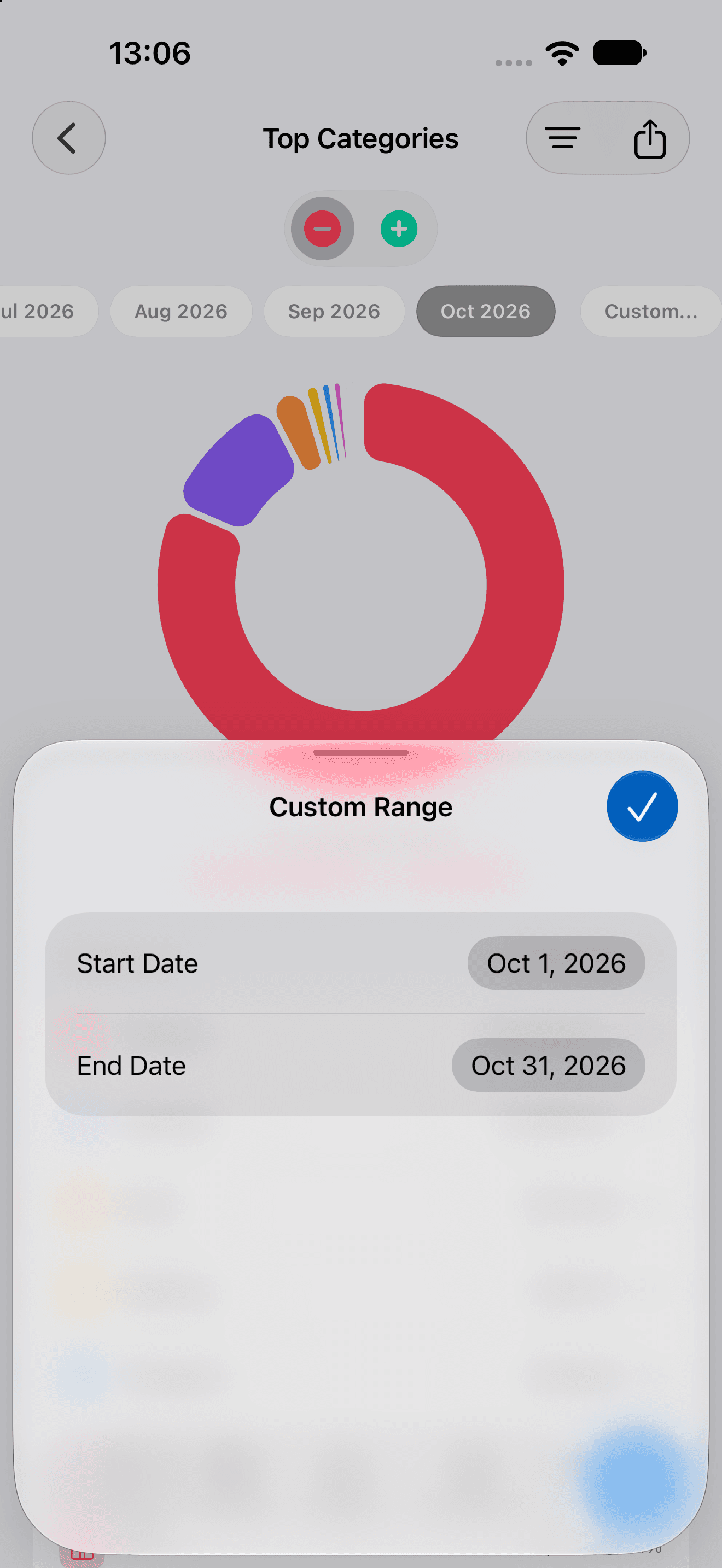
Use the first and last dates of a month to review that calendar month.
Additional information
If the selected period has no category data, Top Categories shows No data for this time period. Some reports can show an upgrade screen.
If a report opened from a Summary card limits filtering, reopen the report through Reports.
To exclude internal transfers, see how to exclude transfers from reports.
To review transactions by day, see how to use Calendar.