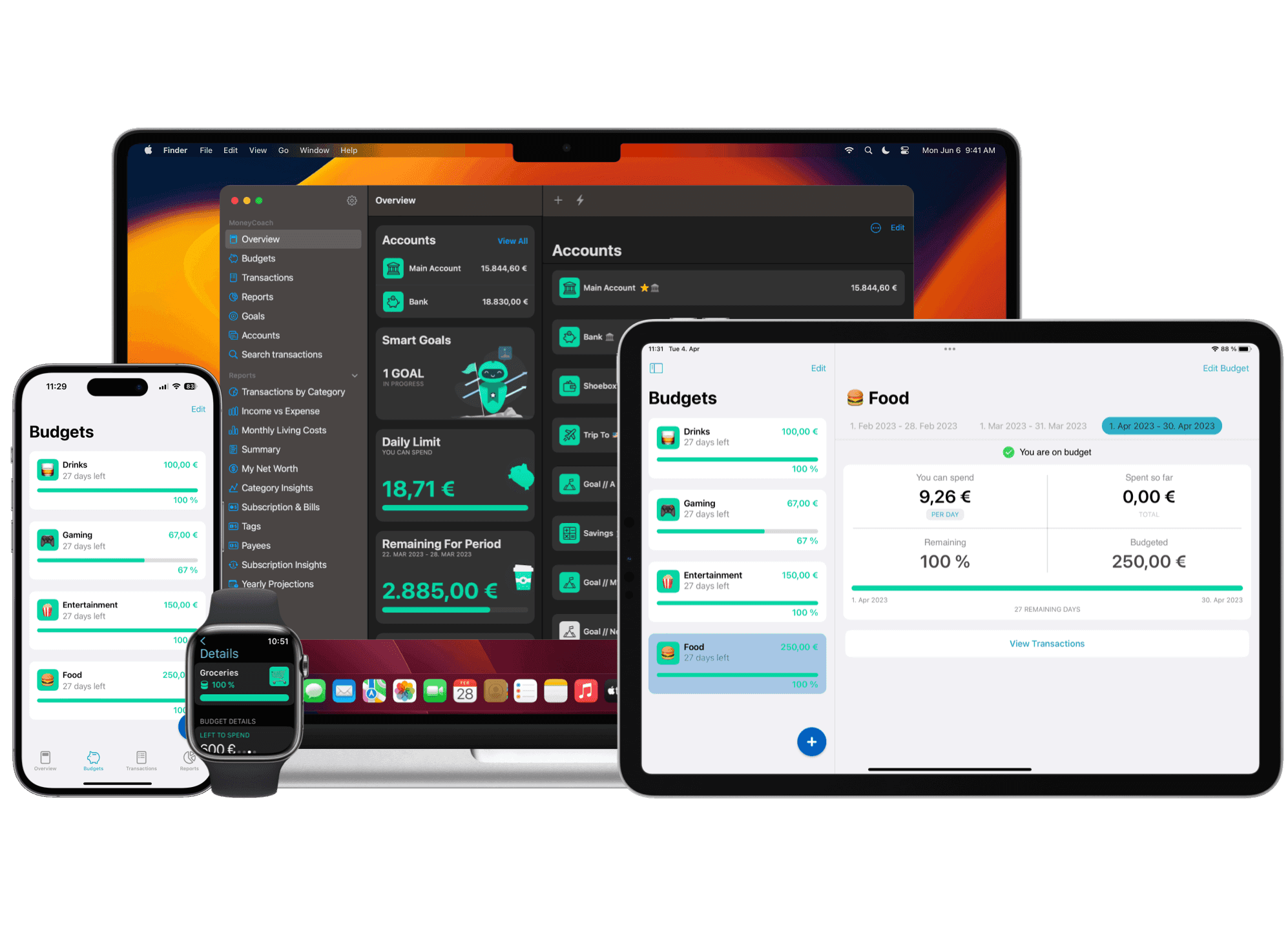
To upgrade an existing MoneyCoach subscription, open Subscriptions in Apple's Settings app and check the available Premium Max plans. Review Apple's purchase confirmation before you approve the change.
How to upgrade on iPhone or iPad
Use the Apple Account that holds your current MoneyCoach subscription.
- Open Apple's Settings app.
- Tap your name.
- Tap Subscriptions.
- Tap your MoneyCoach subscription.
- Tap See All Plans.
- If Premium Max is available, select the plan you want.
- Review the price, billing period, and renewal terms.
- Follow Apple's instructions to confirm the purchase.
- Open MoneyCoach after the purchase completes.
These steps follow Apple's instructions for changing a subscription plan.
To view upgrade offers in MoneyCoach, open Settings. Tap View Upgrade Options on the subscription card.
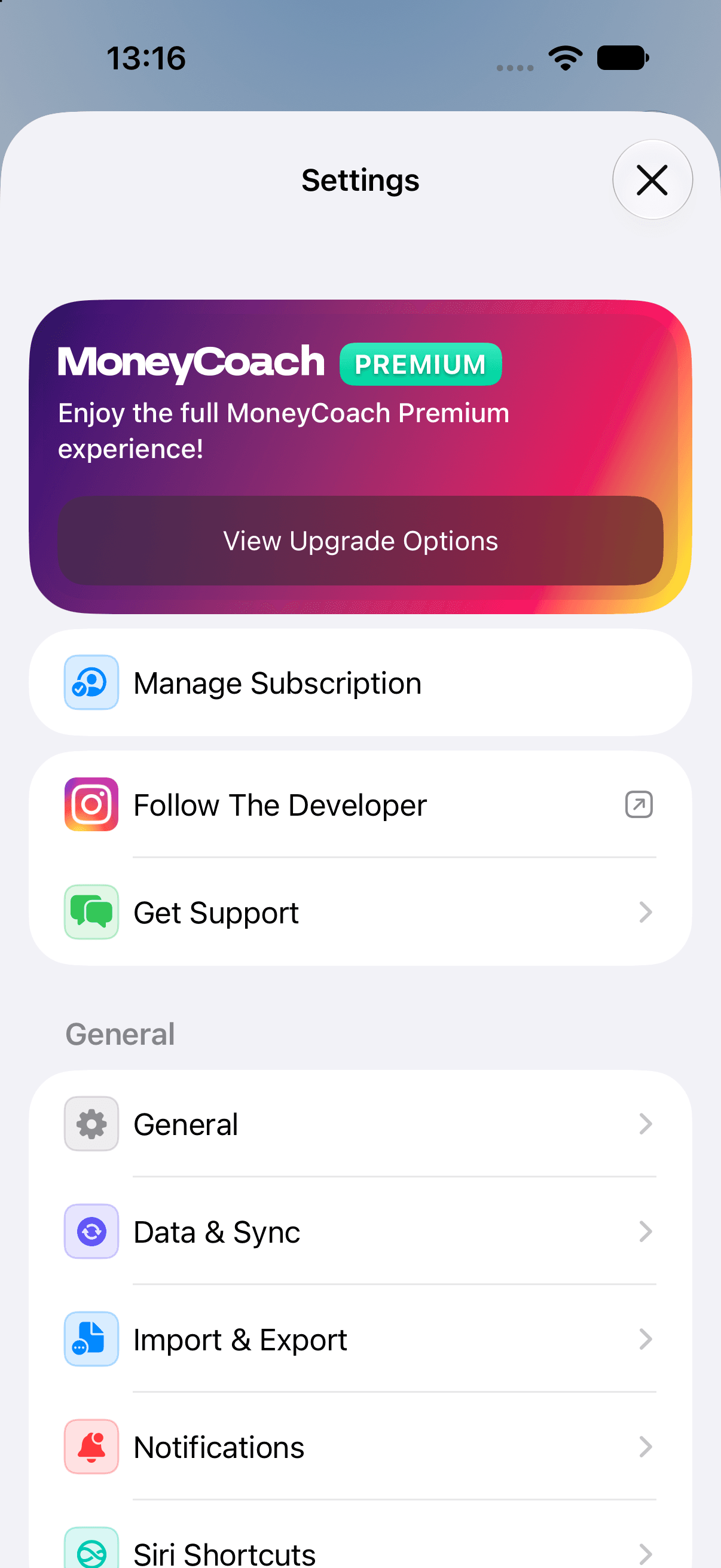
For an existing Premium subscription, select View Upgrade Options on the subscription card.
When does the upgrade start?
If Apple treats your change as a higher-level upgrade within the same subscription group, the new subscription starts immediately. A new billing period starts at that time.
A change between plans at the same level can follow different timing rules. Check Apple's confirmation for your specific change.
What happens to the time I already paid for?
For a higher-level upgrade within the same subscription group, Apple refunds the unused portion of your previous subscription proportionally. Apple handles this adjustment.
For example, unused paid time produces a partial refund under this rule. It does not add the remaining days to the new plan.
These conditions come from Apple's subscription upgrade rules. They apply to qualifying subscription changes, rather than every purchase with a different plan name.
How much will I pay?
Check Apple's purchase confirmation for the price and billing period before you approve the change. Review the renewal terms at the same time.
Do not calculate the charge from a price shown in an older guide or email. Use the offer Apple presents for your account.
What if Premium Max access does not appear?
- Check that Apple's Subscriptions screen shows the Premium Max plan as active.
- Make sure you use the Apple Account that made the purchase.
- Open MoneyCoach Settings.
- Scroll to Restore Purchases.
- Tap Restore Purchases.
When MoneyCoach recognizes Max access, the subscription card in Settings shows Premium Max.
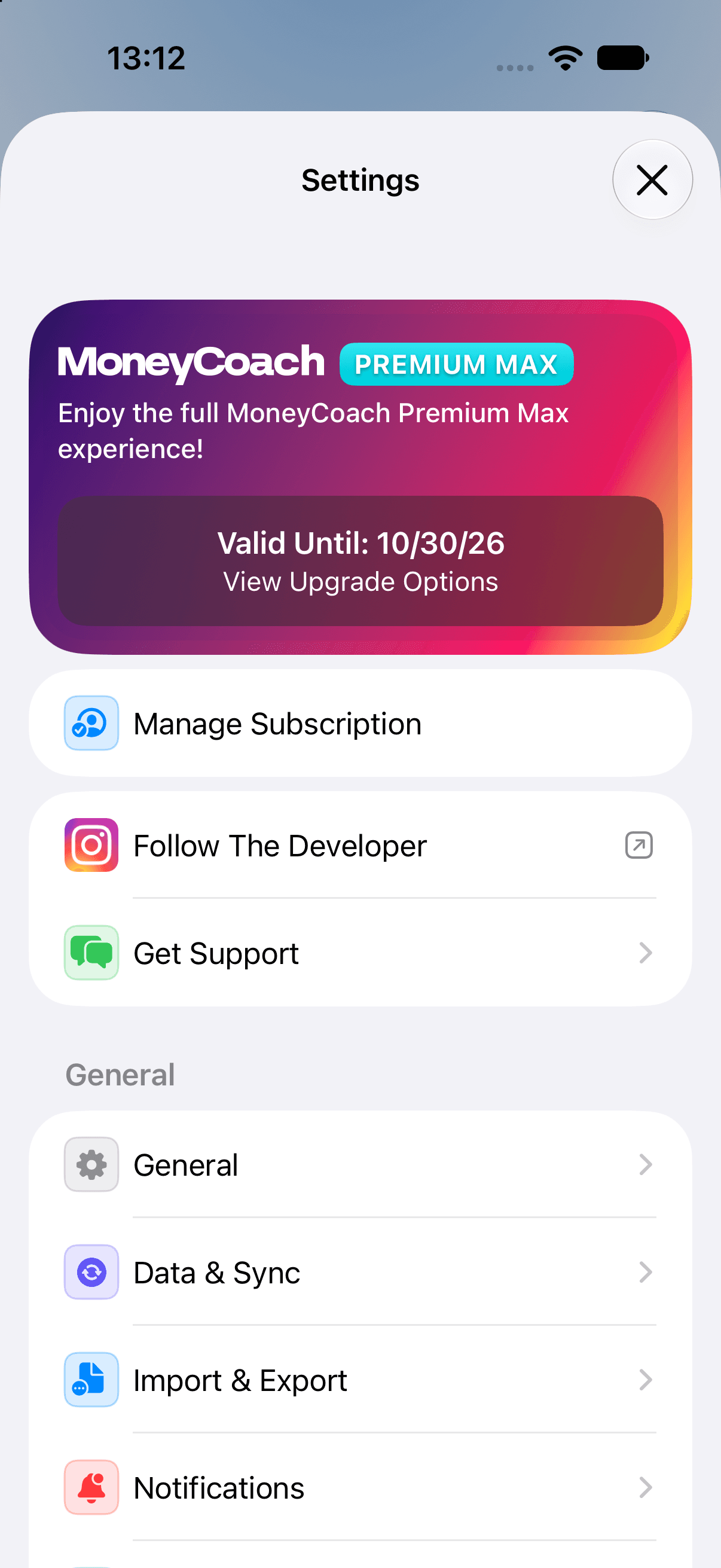
The subscription card shows Premium Max when Max access is active.
If restoration fails, restart your device and try again. If Apple charged you and access remains unavailable, contact MoneyCoach support.
These checks follow Apple's help for missing in-app purchases.
Additional information
This guide covers an existing Apple subscription. Available plans and purchase terms can differ by account and offer.
To manage cancellation instead, read how to cancel a MoneyCoach subscription.