Quick Entry is designed for speed. It is ideal when you are adding routine transactions and want MoneyCoach to help you resolve the amount, category, and account from a short line of text. This speed also makes it a good way to track cash payments right after you pay.
TL;DR
- Open Quick Entry from the Quick Entry card on Overview.
- If the card is missing, open Settings > Customize Overview > Configure Overview Cards and enable Quick Entry.
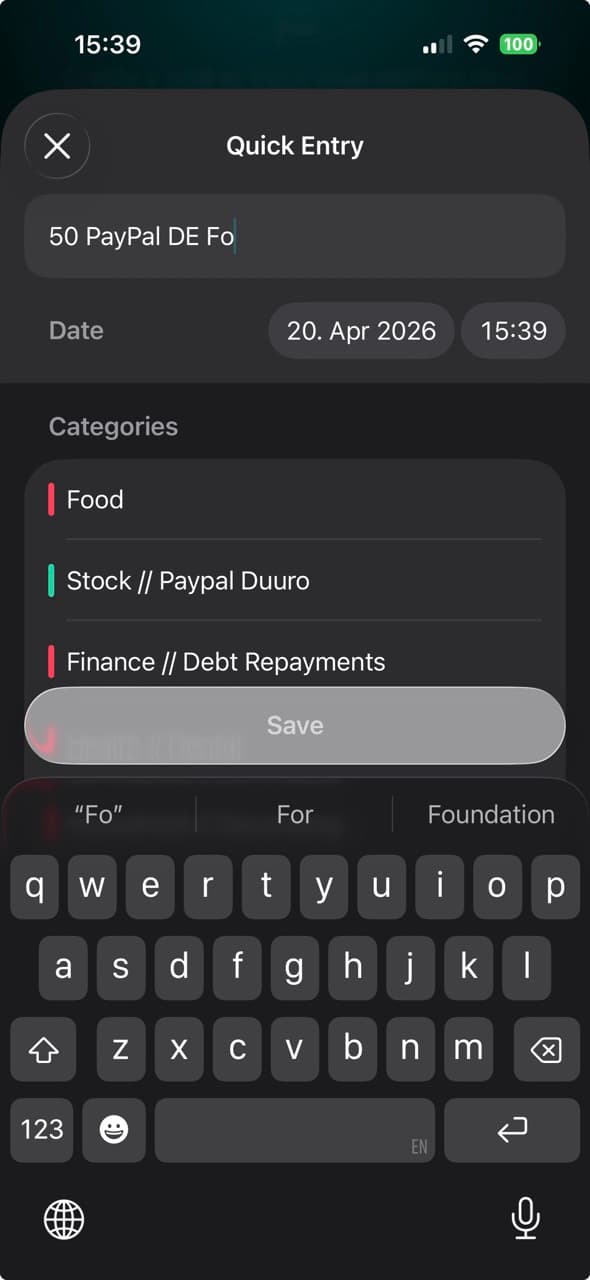
- Type the amount first, then add context like category or account.
- Pick one of the suggested matches if MoneyCoach has not resolved everything yet.
- Tap Save.
Video Tutorial
This video is hosted on YouTube. When you load it, data such as your IP address is sent to Google, and Google may set cookies. Privacy Policy
Step-by-step guide
- Open Overview.
- Open the Quick Entry card.
- Type the amount first.
- Keep typing a short description such as the category, subcategory, or account.
- Review the Suggestions, Accounts, or Categories sections if MoneyCoach offers matches.
- Tap a suggestion when you want to lock in the correct account, category, or subcategory.
- Adjust the Date if needed.
- Tap Save.
If Quick Entry is not on your Overview
Quick Entry is an Overview card, so it can be hidden if you customized your Overview. To bring it back:
- Open Settings.
- Tap Customize Overview.
- Tap Configure Overview Cards.
- Enable Quick Entry.
- Go back to Overview and open the Quick Entry card.
For the full card customization flow, see How To Customise Your Overview.
Best use cases
- Daily commute and transportation costs.
- Coffee, snacks, and other routine spending.
- Fast back-to-back entries when catching up on the day.
Common mistakes
- Opening Quick Entry for transactions that need notes, location, repeating settings, or attachments.
- Typing only the amount and saving before confirming the suggested category when MoneyCoach has not resolved it yet.
Additional notes
- Quick Entry needs an amount and a resolved category before the Save button becomes available.
- If you need notes, payee, tags, location, repeating rules, or attachments, use How To Add a New Transaction.
- If you reuse the same transaction pattern often, set up Shortcuts for even faster entry.