Category Budget details are where you review what actually happened inside one budget. The main budget list is good for quick progress checks, but the details screen gives you the full context: monthly progress, yearly history, key metrics, transactions, and budget actions.
Use this screen when you want to understand why a budget is high, whether a category needs a top-up, or whether you should transfer budget room from another category.
What the details screen is for
Open a Category Budget when you need more than the current progress bar. The details screen helps you answer practical questions:
- How much did I spend this month?
- Is this budget still running or already closed?
- How does this month compare with earlier months?
- Which transactions are counted in this budget?
- Should I edit the limit, top up the budget, transfer budget room, or rebalance?
The same idea applies to parent categories and subcategories. For example, a detail page can show Food as the parent budget, or Food | Groceries when you are reviewing a specific subcategory budget.
Read the monthly summary card
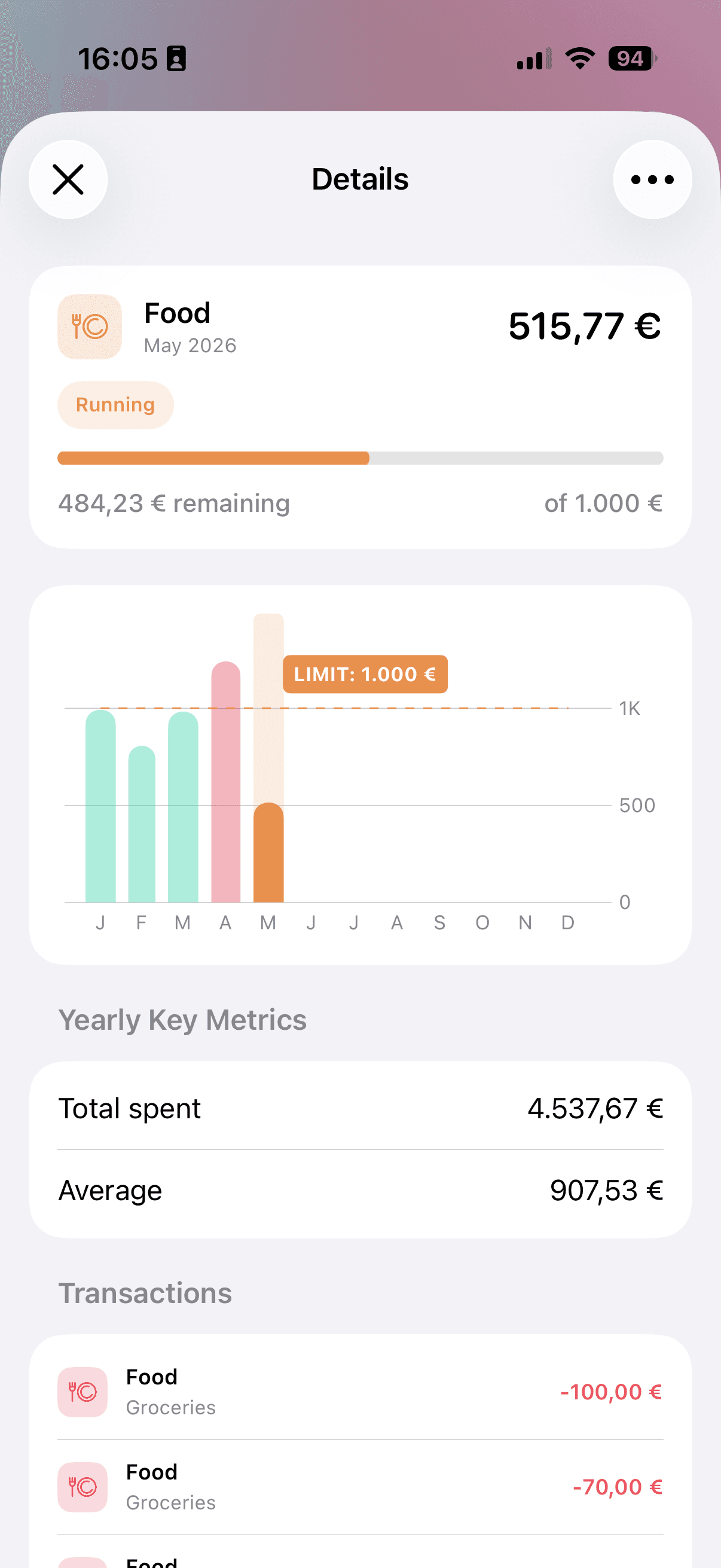
The top card summarizes the selected month. It shows the category, month, current status, spent amount, progress bar, and either the remaining amount or the amount saved.
For a Running budget, MoneyCoach shows how much budget room is still available. If the budget says 484.23 remaining of 1,000, that means the budget still has room before reaching the limit.
For a Closed budget, MoneyCoach shows the final result for that month. If the budget says 18.12 saved of 1,000, that means the month ended under the limit by that amount.
If the budget is a subcategory budget, the title can include both levels, such as Food | Groceries. That makes it clear whether you are reviewing the full Food budget or only the Groceries subcategory.
Use yearly budget history
The yearly history chart shows each month as a bar and compares spending against the budget limit line. This is one of the most useful parts of Category Budget details because it turns one month of spending into a pattern.
Use the chart to spot:
- Months where spending stayed under the limit.
- Months where spending came close to the limit.
- Months where spending crossed the limit.
- Categories where the limit is consistently too low or too high.
The limit label helps you compare every month against the same target. If several months are above the line, the budget may need a permanent edit or a wider rebalance. If only one month is unusually high, a one-time top-up or transfer may be the better choice.
Check yearly key metrics
Below the chart, Yearly Key Metrics gives you a quick read on longer-term behavior.
Total spent shows how much was spent in that budget across the visible year so far. Average shows the average monthly spend for that budget.
These numbers help when deciding what the normal limit should be. If your Food budget is set to 800 but the yearly average is closer to 900, the current budget may be too tight. If the average is far below the limit, you may be able to move budget room to another category.
Review matching transactions
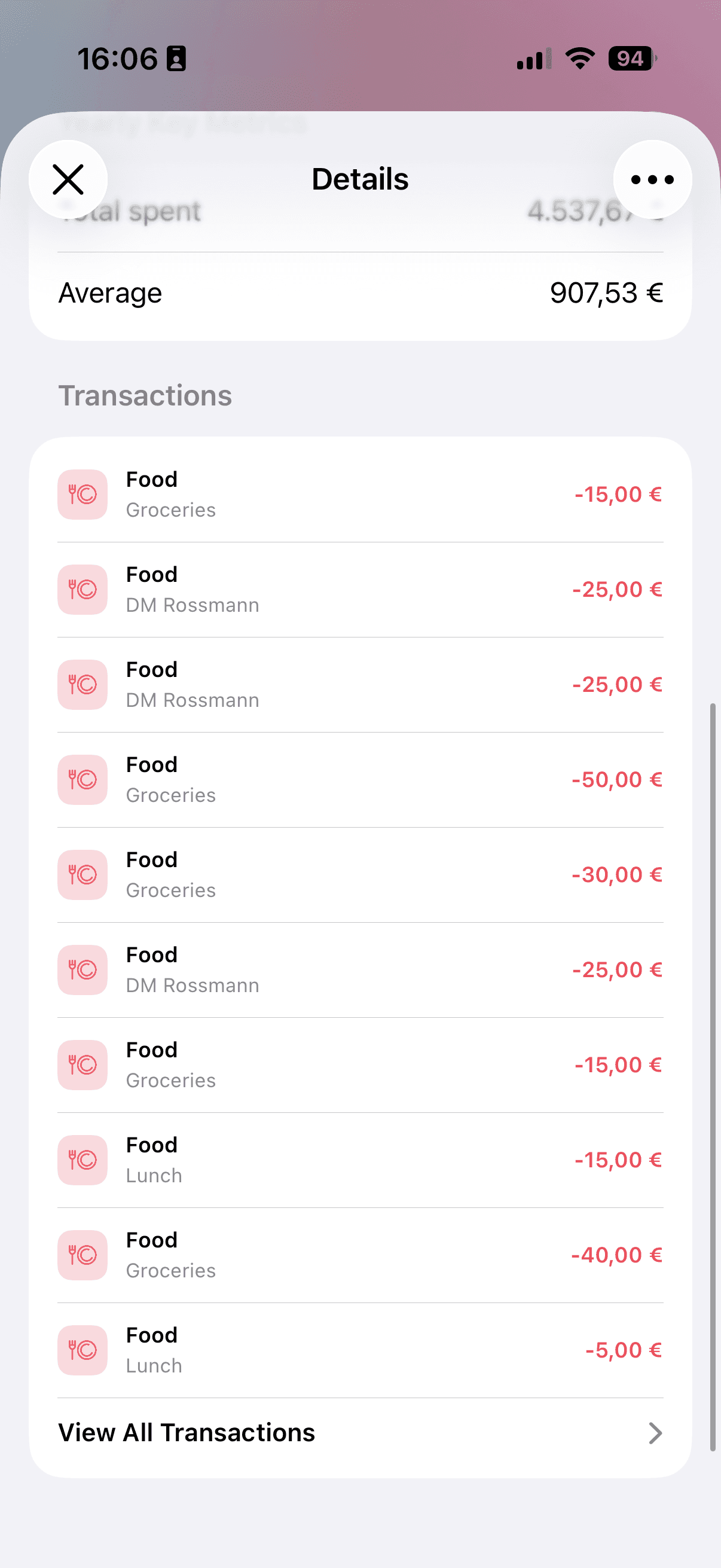
The Transactions section shows the expenses counted toward the selected Category Budget. This is where you can check what is driving the spending total.
Each row shows the transaction category, subcategory or payee context, and amount. When the list is longer, use View All Transactions to open the full transaction list for that budget.
Review transactions before changing the budget. Sometimes the answer is not a bigger limit. A transaction may be categorized incorrectly, or one unusual purchase may explain the month.
Use the More menu actions
The details screen also gives you budget actions from the More menu.
Depending on the budget state, you can see actions such as:
- Edit to change the budget setup or limit.
- Top-up to add extra current-month budget room from available monthly income.
- Transfer to move budget room between Category Budgets.
- Delete to remove the budget.
These actions do not move real money between bank accounts. Top-ups, transfers, and edits change the budget limits inside MoneyCoach so your plan better matches reality.
Running vs Closed budgets
A Running budget is still active for the current month. Use the remaining amount, chart, and transactions to decide whether to stay on track, top up, transfer, or rebalance.
A Closed budget is a finished month. Use it for review. Closed months are useful for checking whether your limit was realistic and whether rollover, saved amount, or overspending should influence the next month.
When to use details before changing budgets
Open Category Budget details before making bigger changes. The details screen gives you the evidence you need:
- Use transactions to see what caused the spending.
- Use yearly history to tell whether it is a one-time spike or a pattern.
- Use average to compare your real spending with the budget limit.
- Use Top-up when one current month needs extra room.
- Use Transfer when another category can give room back.
- Use Rebalance Budgets when several categories need adjustment.
This keeps budgeting practical. You are not guessing from one progress bar; you are using the budget's history and transactions to make the next decision.
FAQ
What does the Category Budget details screen show?
The details screen shows the selected budget month, status, spent amount, remaining or saved amount, yearly budget history, yearly key metrics, and matching transactions.
What is budget history in MoneyCoach?
Budget history is the yearly chart inside a Category Budget. It shows monthly spending bars against the budget limit line so you can compare each month and see whether spending stayed under, came close to, or crossed the limit.
Can I use details for subcategory budgets?
Yes. Category Budget details can show a parent category or a subcategory budget. For example, Food | Groceries means you are reviewing the Groceries subcategory inside Food, not the full Food budget.
Why does a budget show saved instead of remaining?
A Running budget shows the amount still remaining for the current month. A Closed budget shows the final saved amount when that month ended under the limit.
Why is a transaction counted in a Category Budget?
MoneyCoach counts expense transactions whose category or subcategory matches the selected Category Budget. If a total looks wrong, review the transaction list and check whether one of the transactions needs a different category.
Can I top up, transfer, or edit from the details screen?
Yes. Open the More menu from the details screen to access actions such as Edit, Top-up, Transfer, or Delete when they are available for that budget.
Do budget actions from the details screen move real money?
No. Editing, topping up, transferring, and rebalancing only change budget limits inside MoneyCoach. They do not move money between bank accounts and do not create bank transactions.