Category Budgets are the new automatic way to plan spending around the categories you already use in MoneyCoach. Instead of building a custom budget from scratch, you pick a category such as Food, Shopping, Transport, or Entertainment, set a monthly limit, and MoneyCoach tracks matching expenses for you.
What Category Budgets do
A Category Budget follows just one category and any selected subcategories. When you add an expense to that category or subcategory, MoneyCoach counts it toward the budget for the selected month.
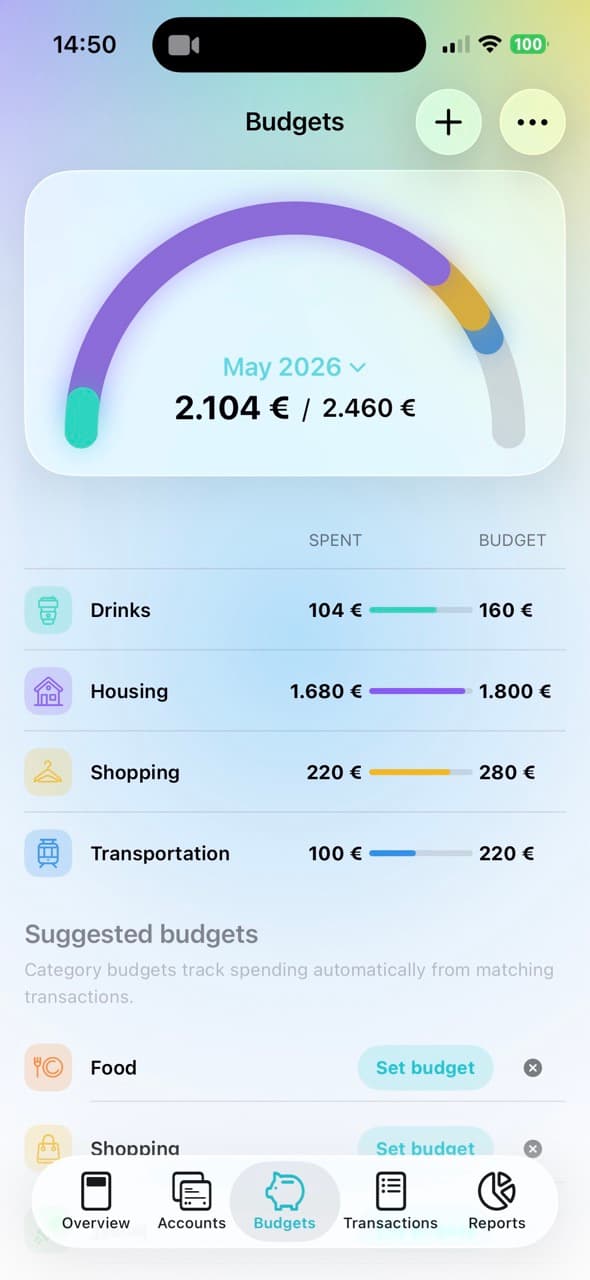
The Budgets screen shows your planned budgets, the amount spent, the effective monthly limit, and the remaining amount. You can also open a budget to review monthly progress, recent transactions, rollover, and actions like top-up or transfer.
Category Budgets are separate from Classic Budgets. Your existing classic budgets are still available from the More menu in Budgets, under Classic.
Step-by-step guide
- Open Budgets.
- Make sure you are viewing Categories from the More menu.
- Tap the + button.
- Search for and select the category you want to budget.
- Enter the monthly Limit.
- Turn on Rollover if you want unused money or overspending to carry into the next month.
- If the category has subcategories, select the subcategories that should have their own limits.
- Enter a limit for each selected subcategory.
- Leave Match subbudget total enabled if you want MoneyCoach to raise the parent category limit when the selected subbudgets add up to more than the parent limit.
- Tap Done.
How subcategory budgets work
If you create a budget for a parent category, MoneyCoach can also show its subcategories inside that budget. For example, you might create a Food budget and then add separate limits for Groceries and Restaurants.
When Match subbudget total is enabled, MoneyCoach prevents the parent budget from being lower than the total of the selected subcategory budgets. This keeps the category budget internally consistent.
How rollover works
Rollover is optional. When it is enabled, MoneyCoach starts applying rollover after the budget has one completed month.
If you finish a month under budget, the remaining amount is added to the next month. If you overspend, that overspending is carried forward as a negative amount. This makes Category Budgets useful for real spending patterns that do not reset perfectly every month.
Availability
Category Budgets and advanced budget actions are Premium features. Free users can still use Classic Budgets up to the free budget limit, while Premium unlocks the new category-based budgeting experience.