To budget a paycheck that comes every two weeks in MoneyCoach, set Payday Settings to 2 Weeks and create a Classic budget with Budget Interval set to 2 Weeks. Use your last payday for both dates. Your Overview and your budget then start again on each payday.
TL;DR
- On Overview, tap the period button. Payday Settings opens.
- Set Interval to 2 Weeks and Most recent payday to your last payday.
- In Budgets, switch to the Classic view and create a budget.
- Set Budget Interval to 2 Weeks and From to the same payday.
- Tap Done (the checkmark button).
Before you start
- Find the date of your last payday. You need it for both settings.
- Payday Settings is available on all plans.
- Classic budgets are available on all plans.
- Payday Settings does not change budgets. That is why this guide has two parts.
Step-by-step guide
Set your payday to every 2 weeks
- Open Overview.
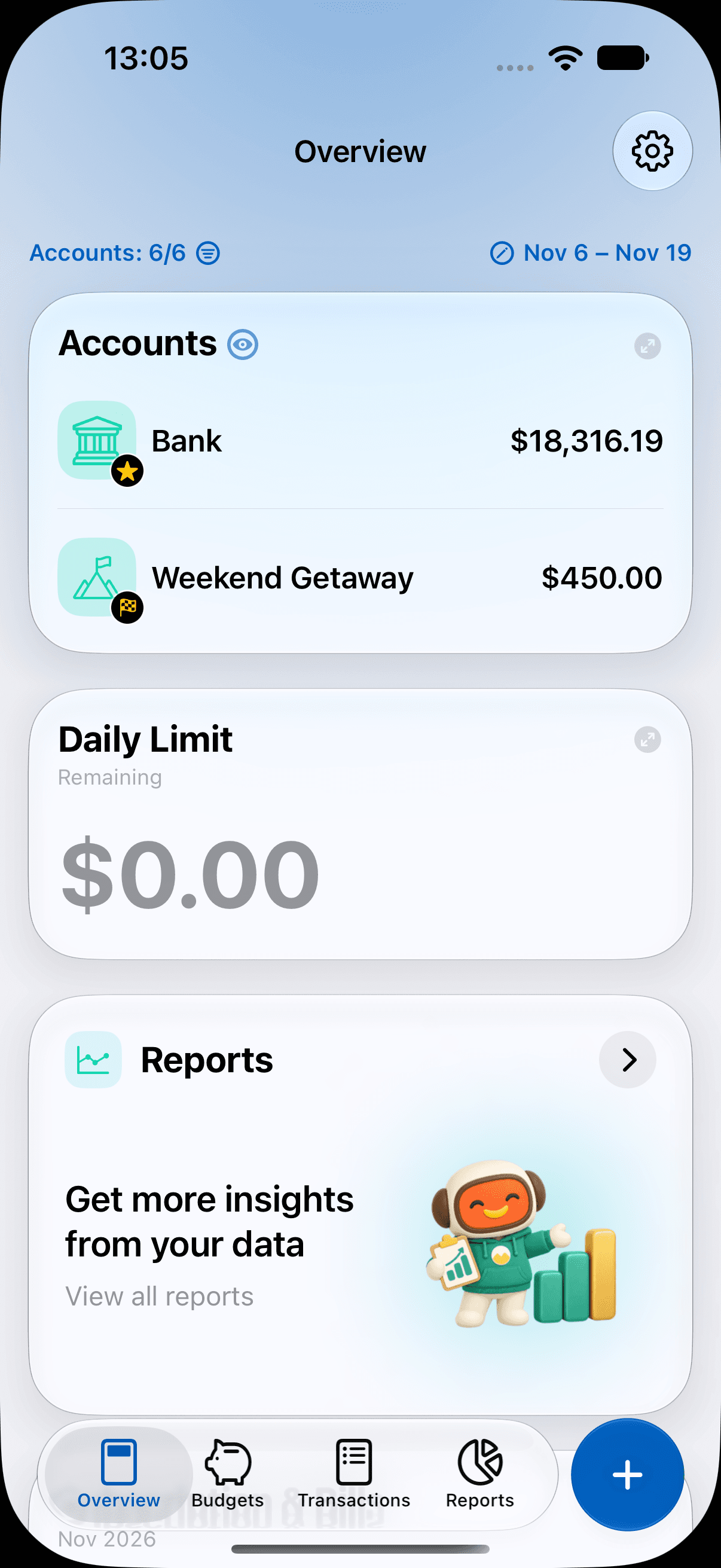
- Tap the period button at the top right. It shows the dates of the current period, for example "Nov 1 – Nov 30". Payday Settings opens.
- Make sure that Start Date is on.
- Tap Interval and select 2 Weeks.
- Tap the Most recent payday date and select your last payday, for example 6 November.
- Tap Done (the checkmark button) to close the screen.
You can also open Payday Settings from Settings > Customize Overview > Customize Payday. MoneyCoach saves each change at once.
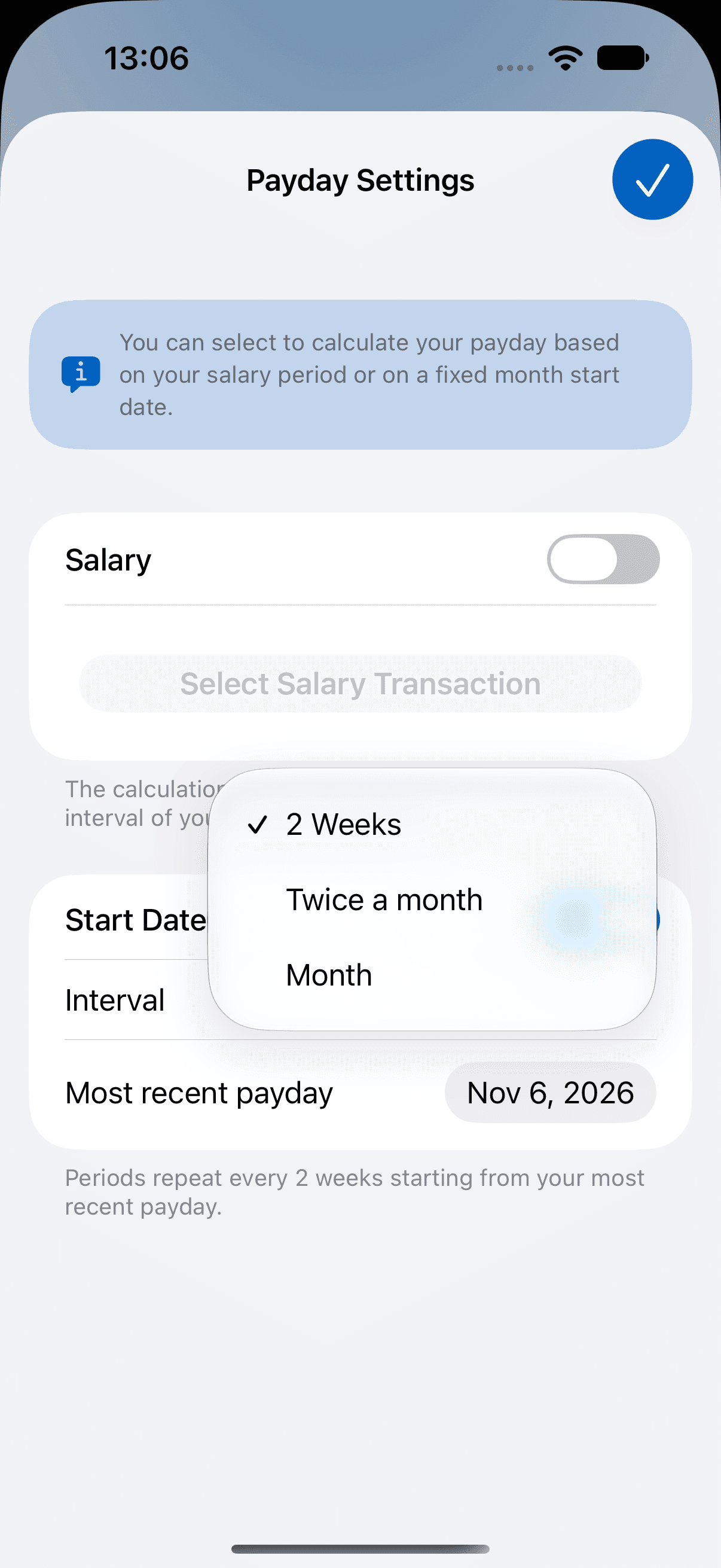
The period button on Overview now shows your pay period, for example "Nov 6 – Nov 19". The Daily Limit and the period cards use the same 14 days.
Create a budget for each paycheck
- Open the Budgets tab.
- Tap the ellipsis (...) menu. Under View, select Classic.
- Tap the + button at the bottom right. The New Budget screen opens.
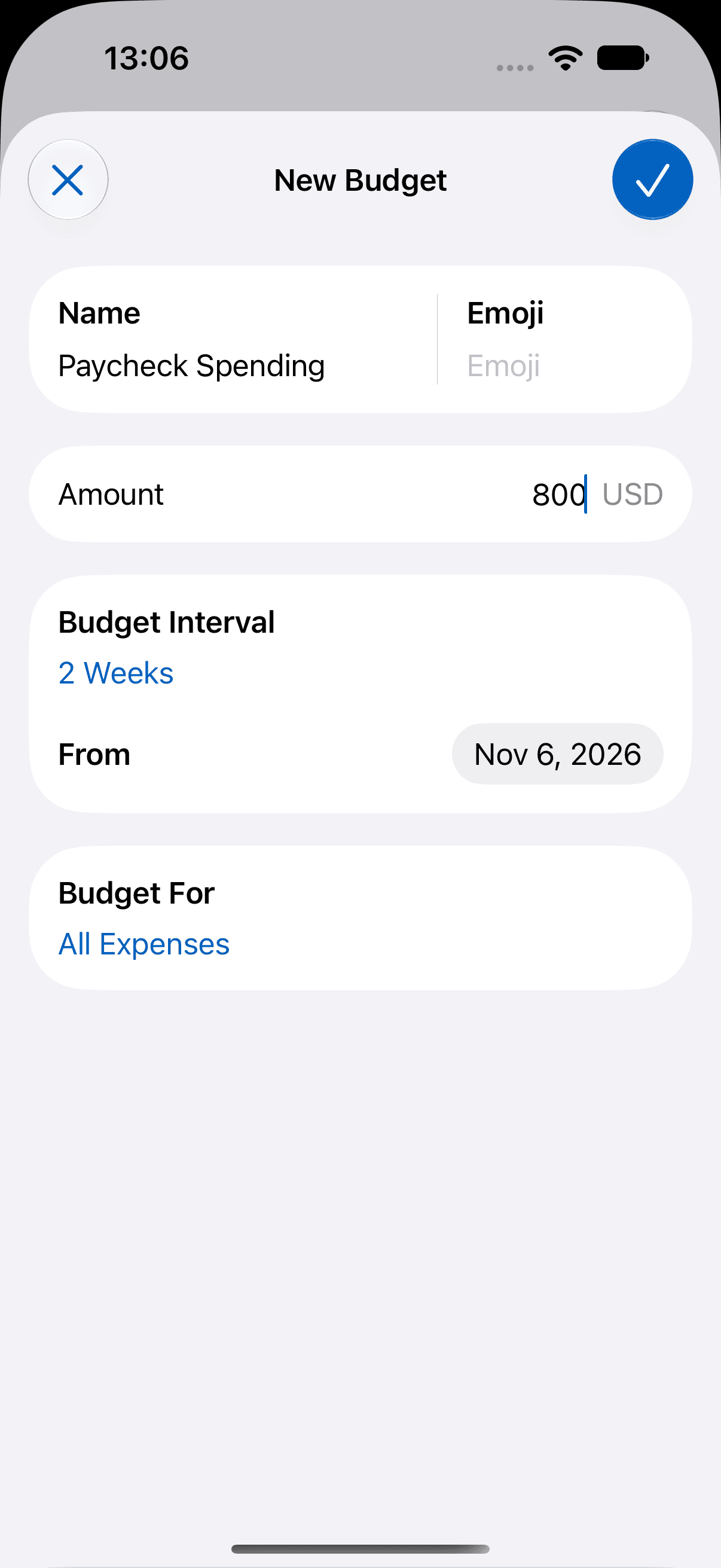
- Enter a Name, for example "Paycheck Spending", and an Amount.
- Under Budget Interval, tap the current interval and select 2 Weeks.
- Tap the From date and select your last payday, for example 6 November.
- Tap Budget For and select the categories that the budget tracks. Then tap Done (the checkmark button).
- Tap Done (the checkmark button) to save the budget.
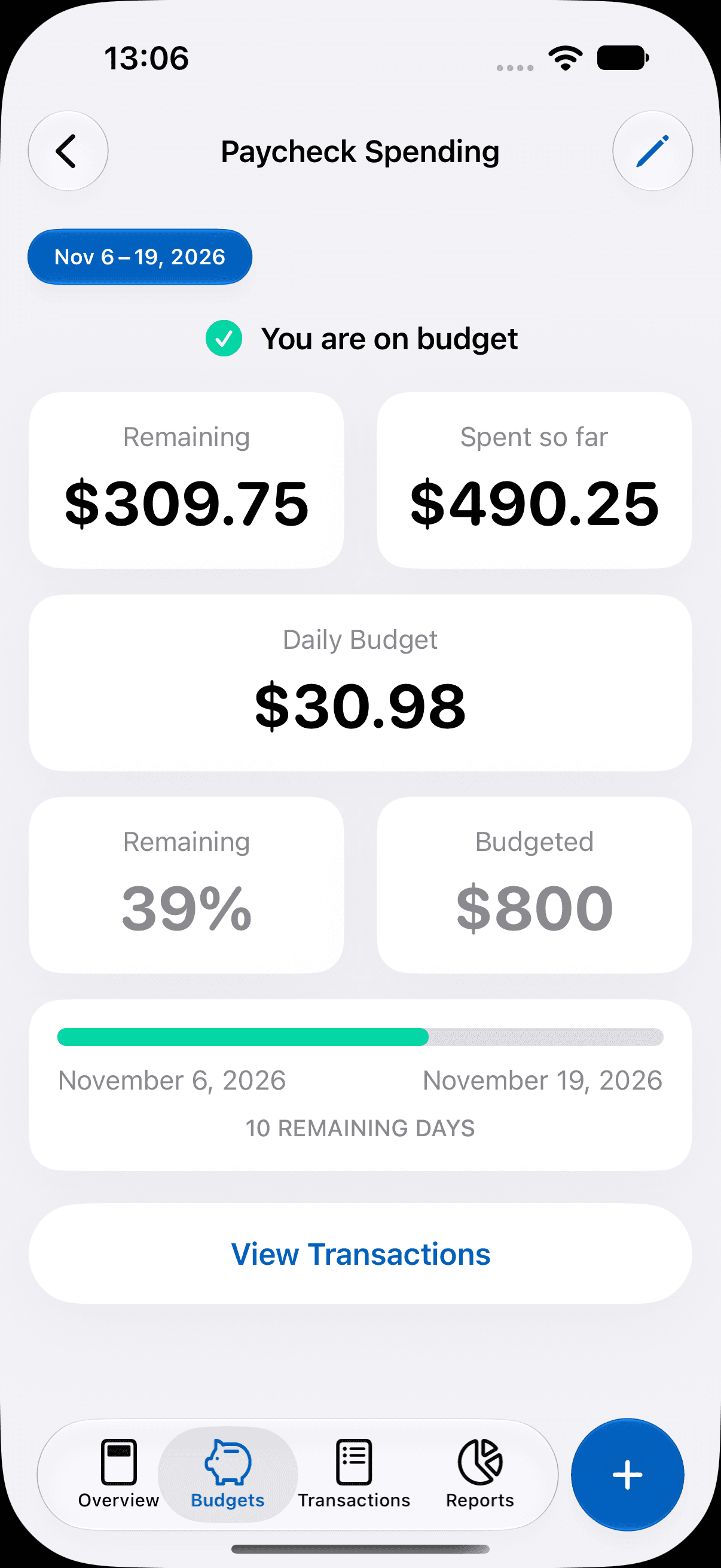
The budget now counts expenses from 6 November to 19 November. On 20 November, your next payday, a new period starts with the full amount. Tap the budget card to see the dates and the remaining days.
Months with three paychecks
A 2 Weeks period is always 14 days long. Most years have 26 paydays, so two months have three paydays. A year has 27 paydays when the first payday is January 1, or January 1 or 2 in a leap year. Then three months have three paydays. You do not need to change anything for these months. Each period gets the full budget amount, so a month with three paydays gets three budget periods.
For example, set the budget amount to the part of one paycheck that you can spend. Use the third paycheck for savings or debt, or plan it with the free biweekly budget template.
Other pay schedules
- Paid twice a month, for example on the 1st and the 16th: in Payday Settings, set Interval to Twice a month and tap the first payday. The second payday is 15 days later. Budgets have no Twice a month interval. Use Month for a budget of the whole month.
- Paid once a month on another day than the 1st: read how to start a budget on any day in MoneyCoach.
- Salary as a repeating transaction: in Payday Settings, switch on Salary and tap Select Salary Transaction. The period length is the repeat interval of that transaction.
| Pay schedule | Payday Settings | Classic budget |
|---|---|---|
| Every 2 weeks | Start Date, 2 Weeks, Most recent payday = last payday | 2 Weeks, From = last payday |
| Twice a month | Start Date, Twice a month, first payday (1 to 15) | Month (no twice-a-month interval) |
| Once a month | Start Date, Month, payday | Month, From = payday |
| Repeating salary transaction | Salary, Select Salary Transaction | The interval that matches your salary |
Additional information
- Payday Settings changes these parts of the app: the Overview cards Remaining For Period, Summary and Payday Card, the Daily Limit, and the reports Top Categories, Category Insights, Subscription & Bills and Remaining For Period. Widgets and Siri use it too.
- Payday Settings does not change budgets. A classic budget uses its own From date.
- Classic budgets have no rollover. Each period starts with the full amount.
- To learn more about the other options, read how to customize your payday in MoneyCoach.
Frequently asked questions
How do I budget biweekly paychecks in MoneyCoach?
Do two things. In Payday Settings, set Interval to 2 Weeks and set Most recent payday to your last payday. Then create a classic budget with Budget Interval set to 2 Weeks and From set to the same payday.
Does Payday Settings change my budgets?
No. Payday Settings changes the period of some Overview cards, reports, widgets and Siri values. A classic budget uses its own From date. A category budget always uses a calendar month.
What does Payday Settings change?
It changes the period of the Overview cards Remaining For Period, Summary and Payday Card, and of the Daily Limit. It also changes the reports Top Categories, Category Insights, Subscription & Bills and Remaining For Period, the Current period choice for exports, the Live Activity, and the values for widgets and Siri.
What happens in a month with three paychecks?
Nothing changes in your setup. A 2 Weeks period is always 14 days long, so most years have 26 paydays and two months with three paydays. A year has 27 paydays when the first payday is January 1, or January 1 or 2 in a leap year. Then three months have three paydays. Each period gets the full budget amount.
What is the difference between 2 Weeks and Twice a month?
2 Weeks repeats every 14 days from your most recent payday, so the dates move during the year. Twice a month uses two fixed days in each month, for example the 1st and the 16th. Both intervals are in Payday Settings. Budgets have 2 Weeks but not Twice a month.
I get paid twice a month, on the 1st and the 16th. How do I set this up?
In Payday Settings, set Interval to Twice a month and tap the first payday. The second payday is 15 days later. Budgets have no Twice a month interval. Use a classic budget with Month for the whole month, or 2 Weeks if a period of 14 days is close enough.
Can MoneyCoach use my salary transaction to find my payday?
Yes. In Payday Settings, switch on Salary and tap Select Salary Transaction. Choose your repeating salary. The period length is the repeat interval of that transaction. A one-time income transaction does not work.
I chose the wrong Most recent payday. How do I fix it?
Open Payday Settings again and choose the correct date in Most recent payday. The periods then repeat every 2 weeks from the new date. MoneyCoach saves the change at once.
Why can I pick only days up to 15 in Payday Settings?
The interval is Twice a month. The second payday is 15 days after the first, so the first payday must be on the 15th or earlier. Choose Month to pick a later day.
Can I see the budget of an earlier pay period?
Yes. Tap the budget card to open its details. The details screen lists up to 12 periods, and you can select one.