Short answer: ChatGPT is useful for the thinking part of a budget. It can turn your income and bills into a first plan, explain a budgeting method, and spot patterns in a spending export. It is less reliable as the place where your budget lives, because it does not keep a ledger, it can miscount, and it only knows the numbers you give it or connect.
This guide shows a simple workflow, prompts you can copy, what OpenAI's Finances feature does, and when a dedicated budgeting app is the better tool.
1. Start with a clean set of numbers
ChatGPT works best with facts, not guesses. Before you open a chat, write down:
- monthly take-home pay (after tax);
- fixed bills: rent or mortgage, utilities, insurance, phone, loan payments;
- subscriptions and other recurring costs;
- a rough average for groceries, transport and eating out from the last two or three months;
- one to three goals, such as an emergency fund or a trip.
If you track spending in an app, export it instead of typing it. In MoneyCoach, go to Settings → Import & Export → Advanced Export → Export as CSV, then choose the period and accounts. The file contains date, account, category, amount, currency and description columns. Export needs an active MoneyCoach subscription.
Before you upload a file, delete columns or rows you do not want to share. Never paste account numbers, IBANs, card numbers or login details.
2. Prompts that work
Copy one prompt at a time and paste your numbers below it.
Draft a monthly budget
I take home [amount] per month. My fixed bills are [list]. I want to save [amount] for [goal]. Build a monthly budget by category, show the totals, and flag anything that does not add up.
Choose a method
Compare the 50/30/20 rule, zero-based budgeting and envelope budgeting for my numbers. Show what each would look like, and tell me which one fits irregular income.
Review a spending export
Here is a CSV of my transactions for the last three months. Group spending by category, show the monthly average, and list the five categories that grew the most. Do not guess categories you cannot see.
Find recurring costs
From this export, list charges that repeat every month or year, with the amount and the date they usually appear.
Plan a goal
I want [amount] by [date]. I have [amount] saved. How much do I need to set aside per month or per paycheck?
Ask ChatGPT to show its working. Then check the totals in a spreadsheet or calculator. If you want a structured starting point, the zero-based budget planner and the budget categories list give you the same framework without a chat.
3. What Finances in ChatGPT adds
OpenAI added Finances to ChatGPT. According to OpenAI's help article (checked 13 Nov 2026):
- it is available in the U.S. to Free, Go, Plus and Pro users on web, iOS and Android;
- you connect financial accounts through Plaid and, separately, a credit report through Experian;
- a dashboard shows spending by category, bills, subscriptions, net worth, investments and credit score;
- ChatGPT cannot move money, pay bills, change account settings, make trades or file taxes;
- ChatGPT is not a fiduciary, registered investment adviser or tax preparer;
- disconnecting Finances removes the synced data from OpenAI's systems within 30 days.
Where Finances is stronger: if you are in the U.S. and want a quick view of linked accounts inside the chat you already use, it needs no other app.
Where it is limited: it is U.S.-only, it depends on what your bank shares through Plaid, and the help article itself notes that transfers, card payments and pending items can distort a spending breakdown.
4. Where a budgeting app still helps
A budget is a record you return to every week. A chat is a conversation. The two work well together, but they do different jobs:
| Job | ChatGPT | Budgeting app |
|---|---|---|
| Explain a method or answer "what if" | Strong | Limited |
| Draft a first plan from your numbers | Strong | Manual setup |
| Keep a complete, editable transaction history | Not designed for it | Core job |
| Budgets that roll over month to month | No | Yes |
| Works without a bank connection | Yes, with pasted data | Depends on the app |
| Same numbers every time you look | No, answers can vary | Yes |
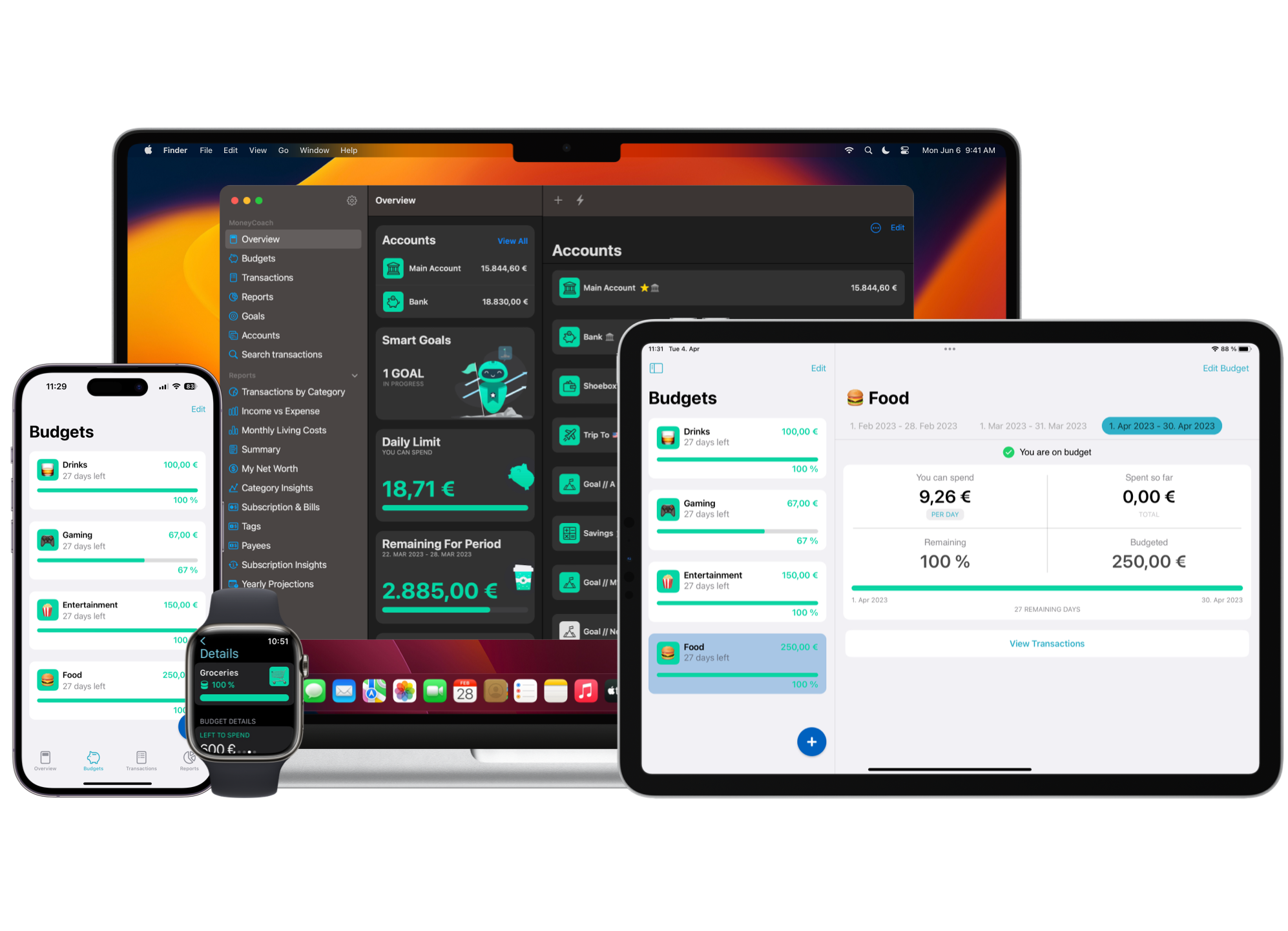
MoneyCoach is one option for the record-keeping side (see AI budgeting app for how it fits next to an assistant). It works without a bank connection, and you can add a bank connection later if you want one. New users start with a free Premium trial.
5. Connect ChatGPT to MoneyCoach data (optional)
If you already track money in MoneyCoach, you can let an assistant read it instead of exporting files. This needs Premium Max.
- In MoneyCoach, open Settings → MCP & AI on iPhone, iPad or Mac.
- Sign in with your MoneyCoach account and tap Turn On.
- Copy the connector address:
https://mcp.moneycoach.ai/mcp. - Add it as a custom MCP connector in your assistant, then sign in with your MoneyCoach account.
The connection is read-only: the assistant cannot add, change or delete anything. MoneyCoach uploads accounts and balances, transactions, budgets and goals, and recurring costs and bills to a server in Germany (EU). IBANs, account numbers and account owner names stay on your device. Payee names and transaction descriptions are only shared if you turn those options on.
Custom MCP connectors in ChatGPT depend on your ChatGPT plan and settings, and the menu changes often. Follow OpenAI's current guide, Connecting custom MCP servers in ChatGPT. The MoneyCoach MCP page explains the connection and its privacy details.
To stop sharing, open Settings → MCP & AI and tap Delete Shared Data and Disconnect.
Common mistakes
- Trusting the totals. Ask for the working and check it.
- Sharing too much. Strip identifiers before you upload anything.
- Treating answers as advice. Use ChatGPT to understand options, then decide yourself or with a qualified professional.
- Starting over every month. Keep the budget in one place, and bring ChatGPT in for reviews and questions.